How to manage users and roles
Add a member of staff as a user, give them a role, and see which rights each role carries.
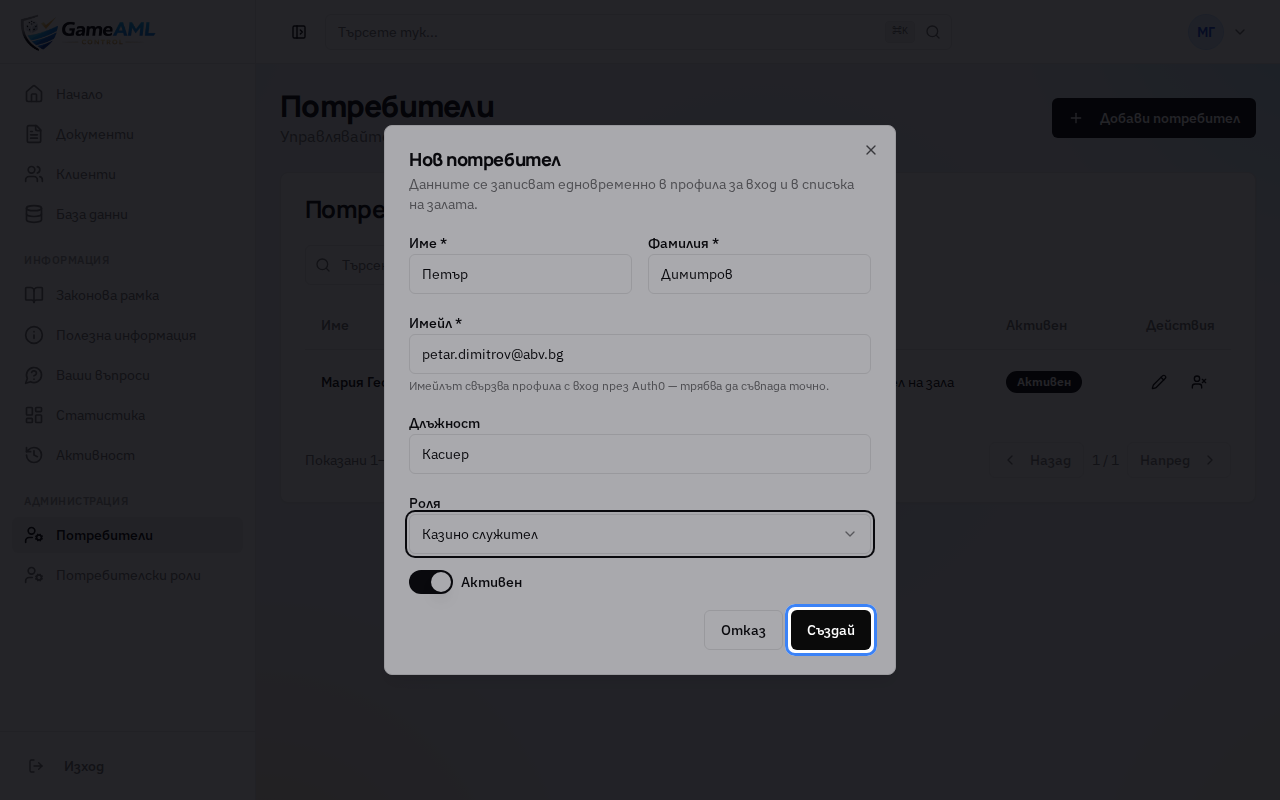
1In the menu, under “Администрация” (Administration), open “Потребители” (Users). You only see it if you are allowed to manage users.
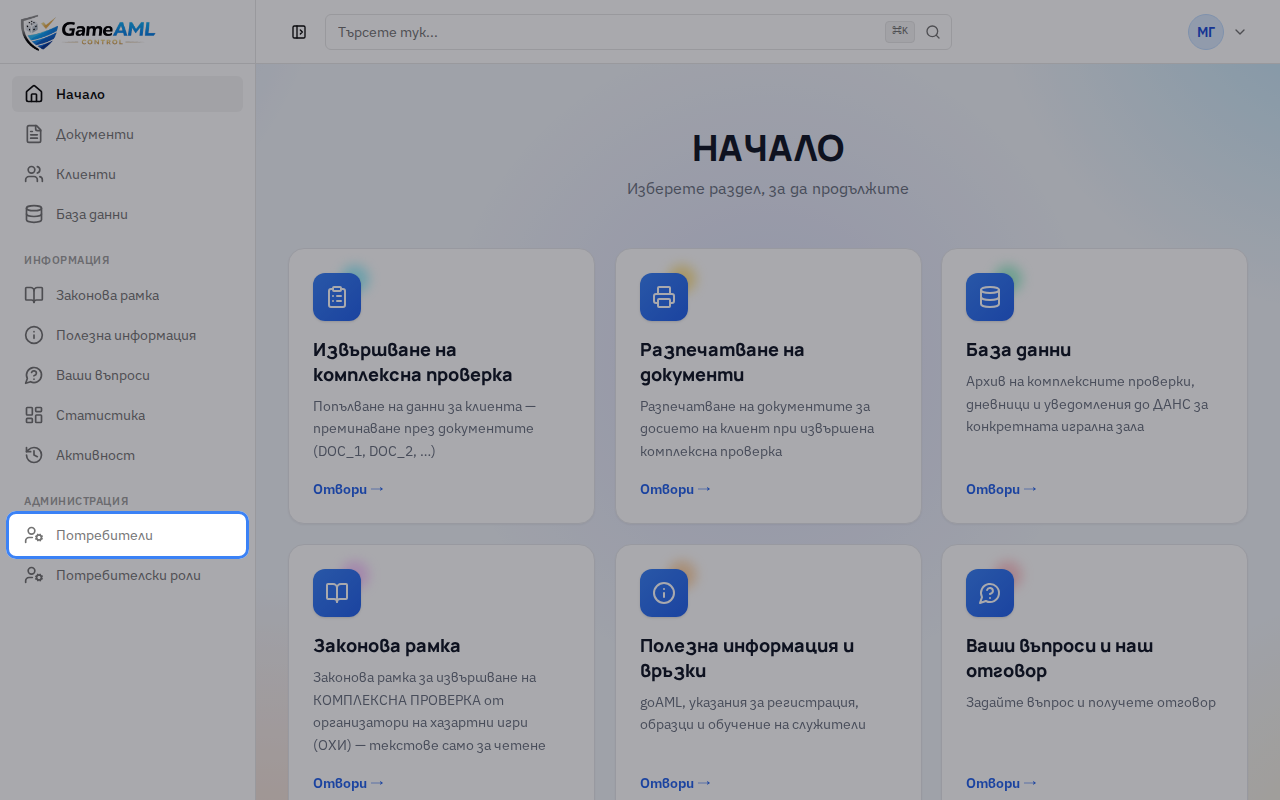
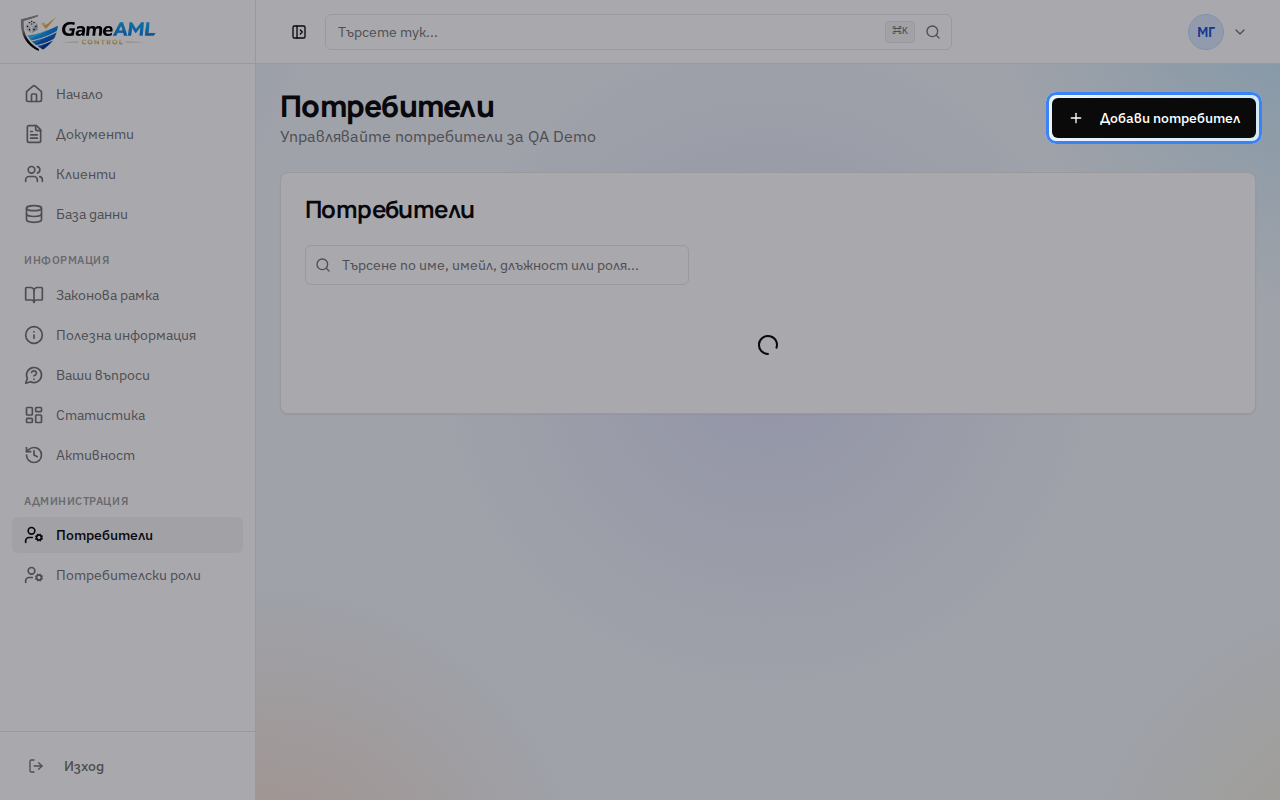
2Click “Добави потребител” (Add user).
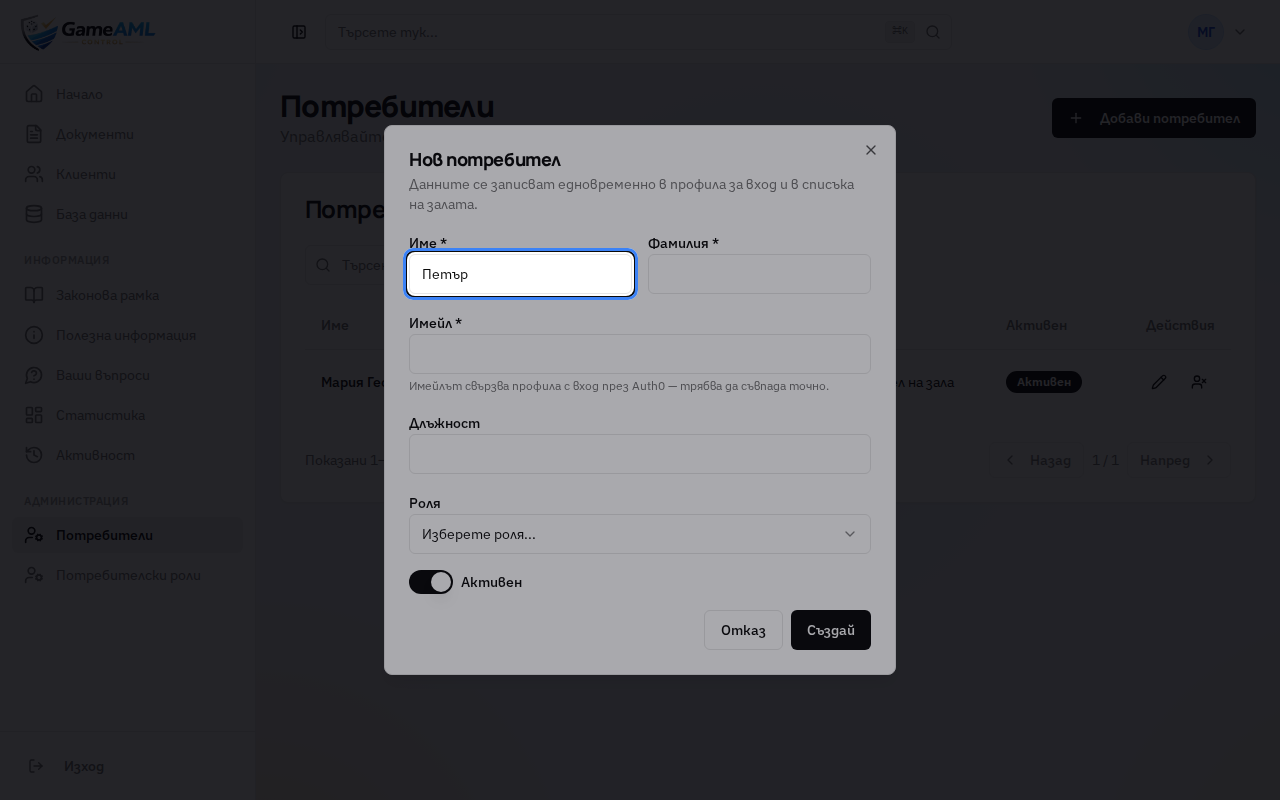
3Enter the employee’s first name.
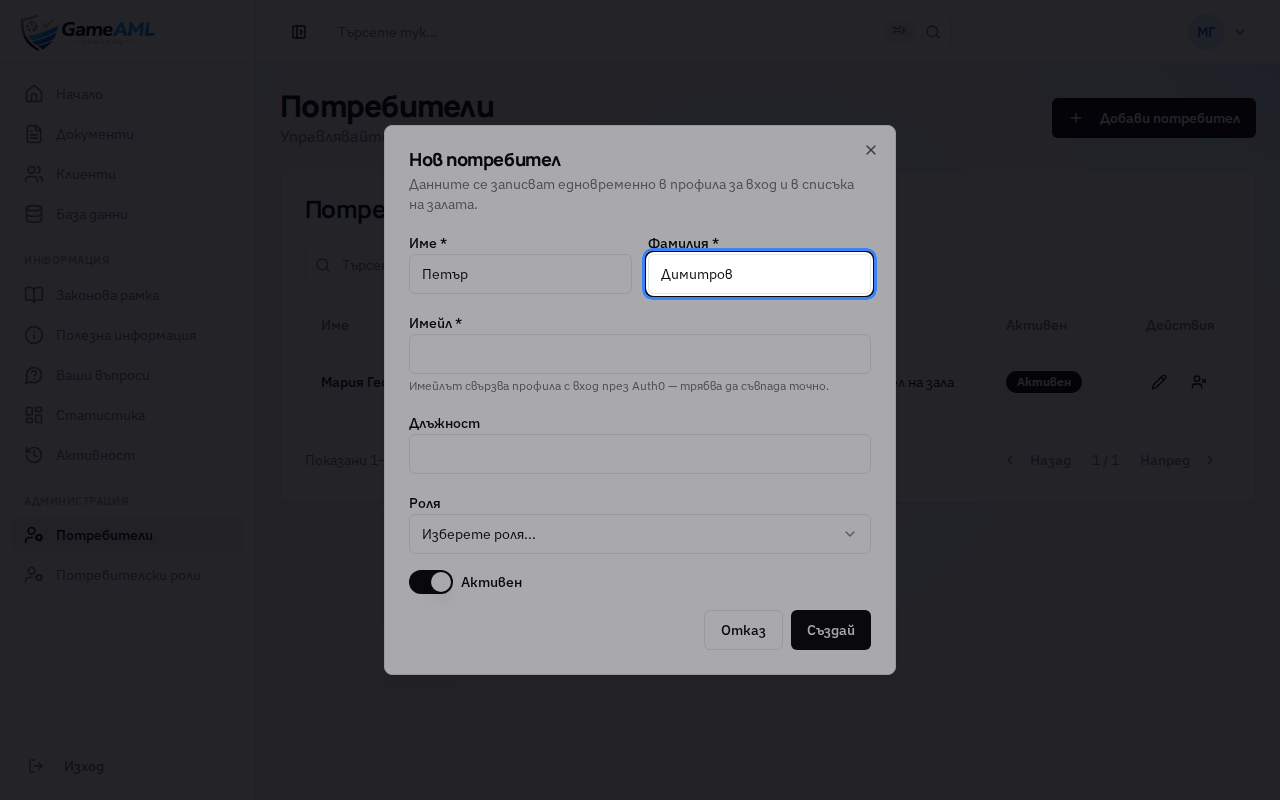
4Enter the surname.
5Enter the email the employee will sign in to GameAML with. It has to match exactly.
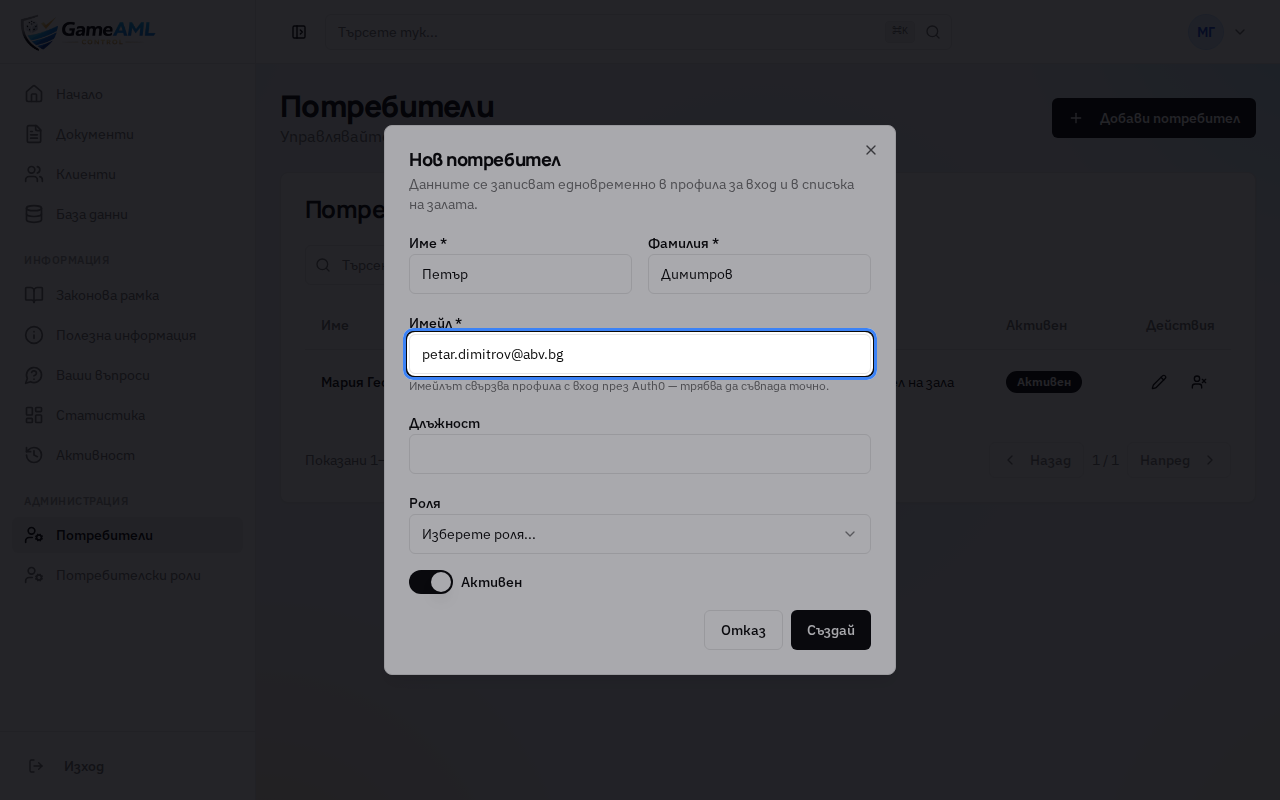
6Optionally add a job title.
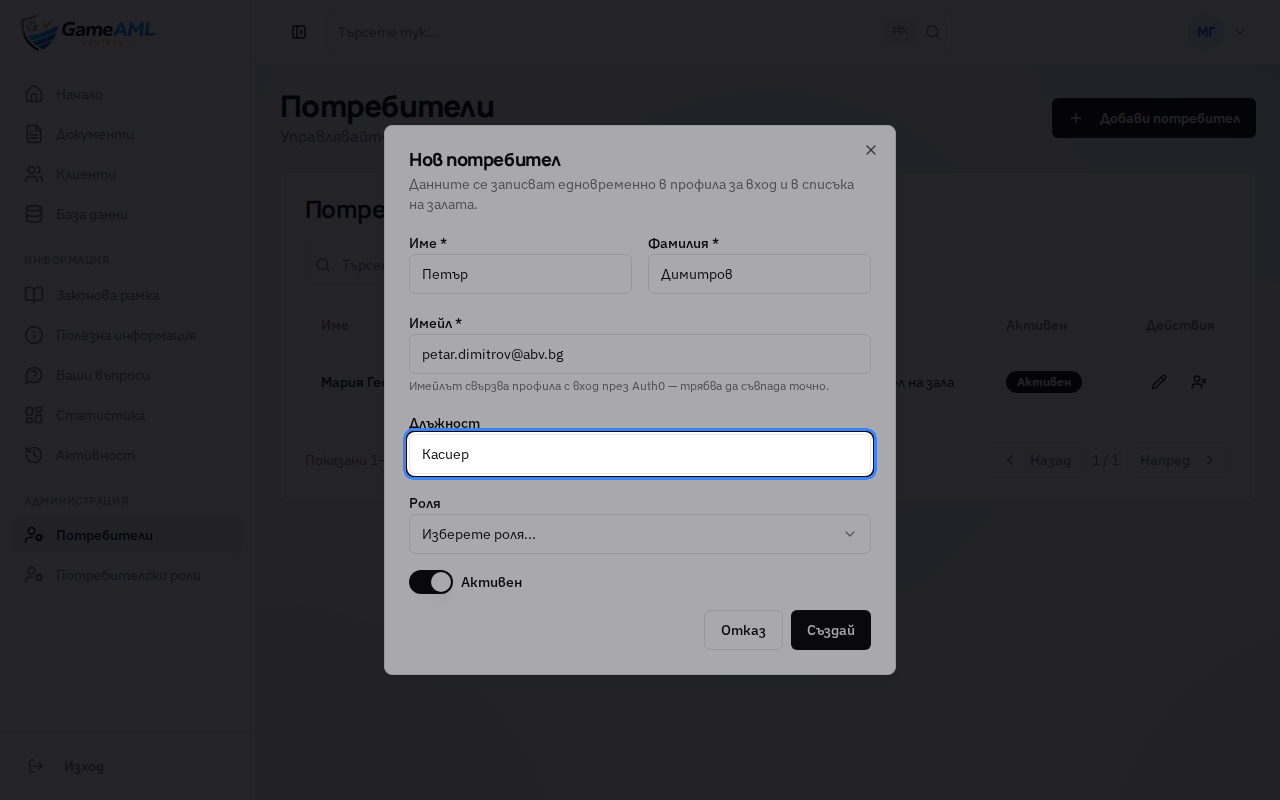
7Choose a role. The role decides what the user can do.
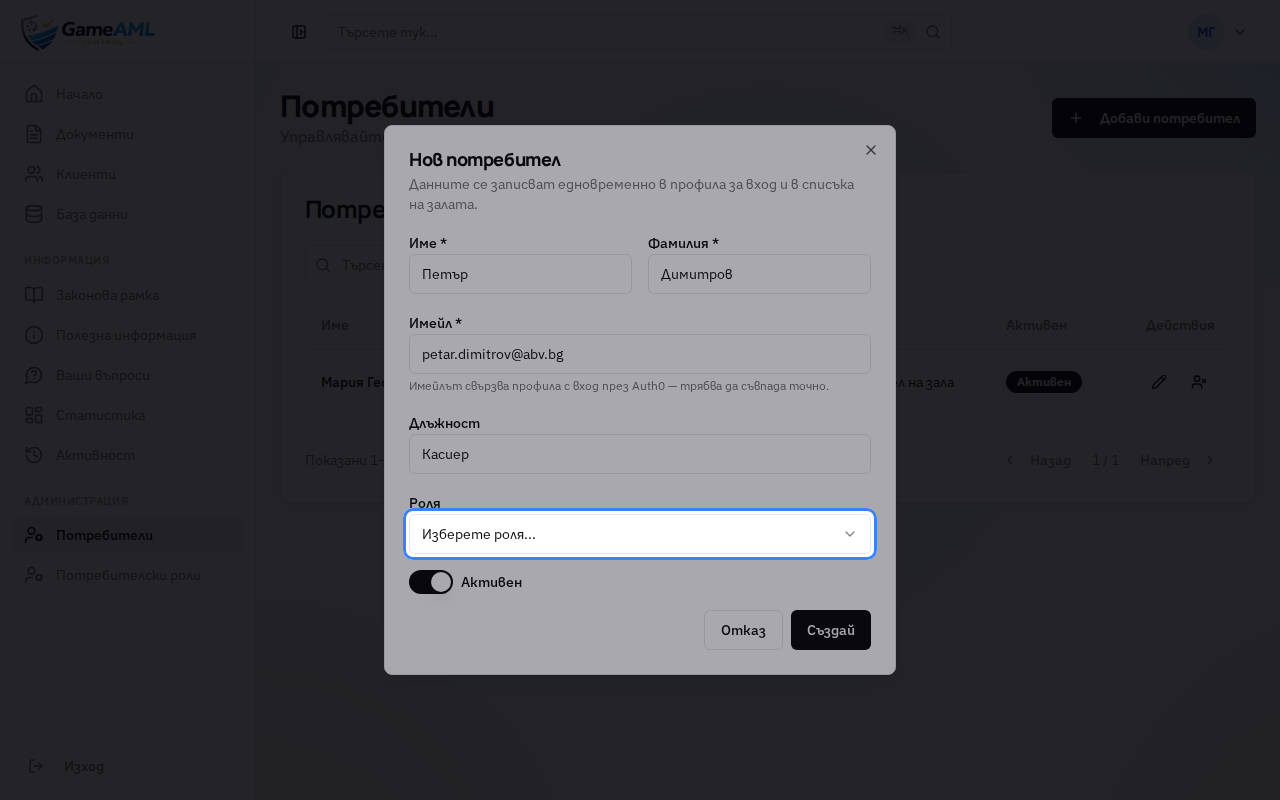
8For example, “Казино служител” (Casino employee).
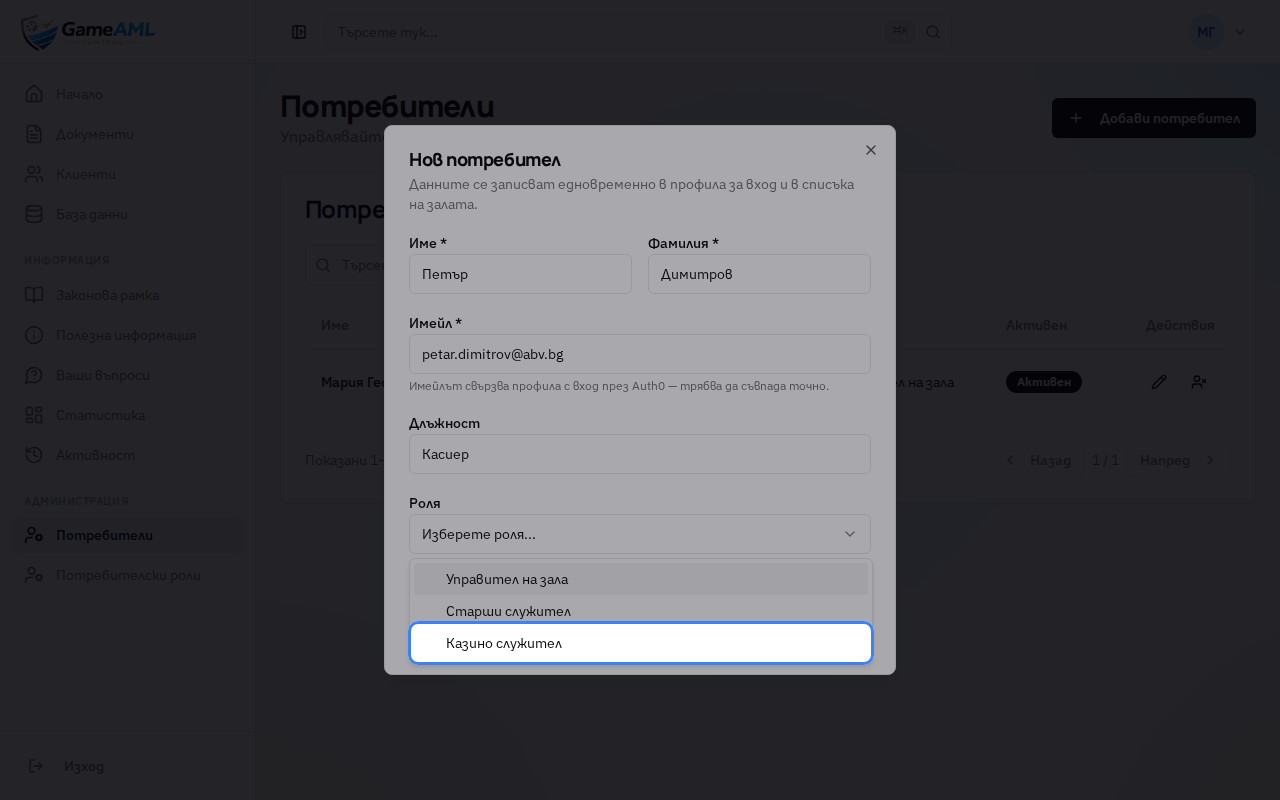
9Click “Създай” (Create). The employee can sign in with that email straight away.
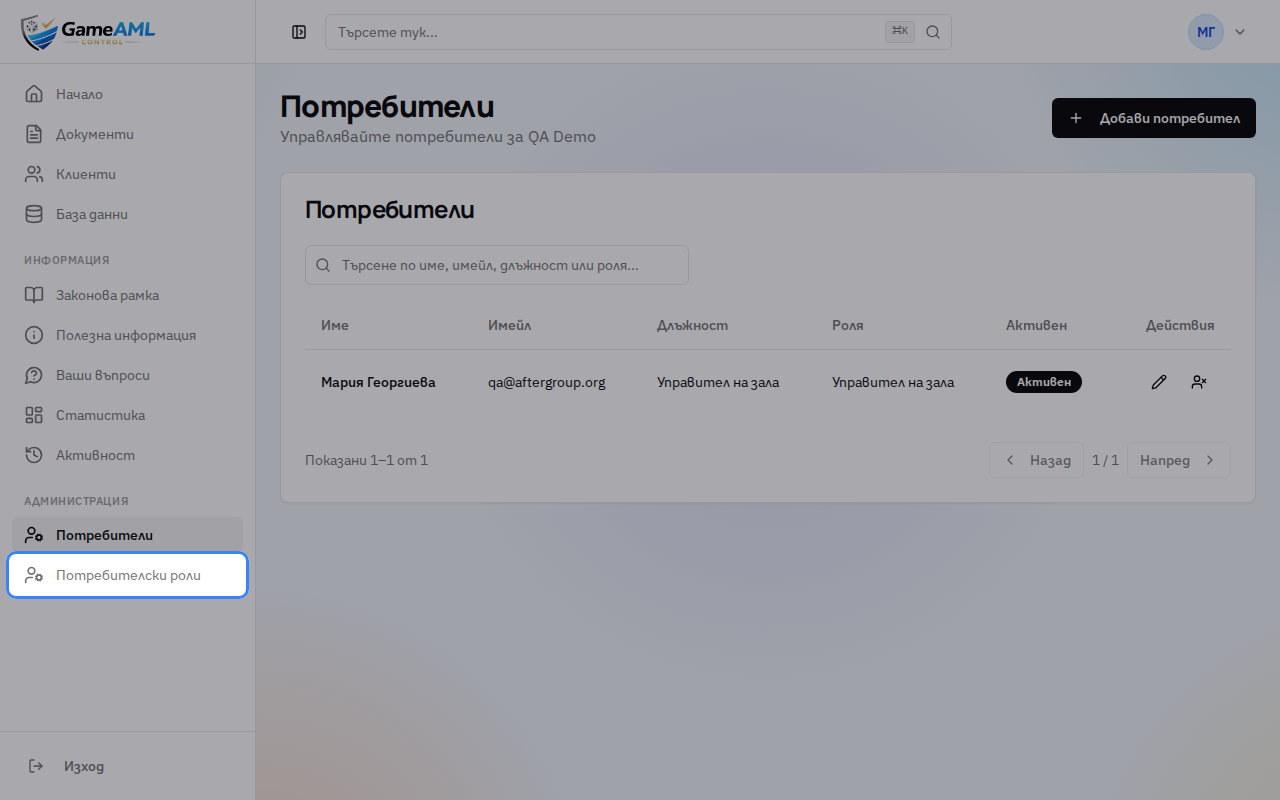
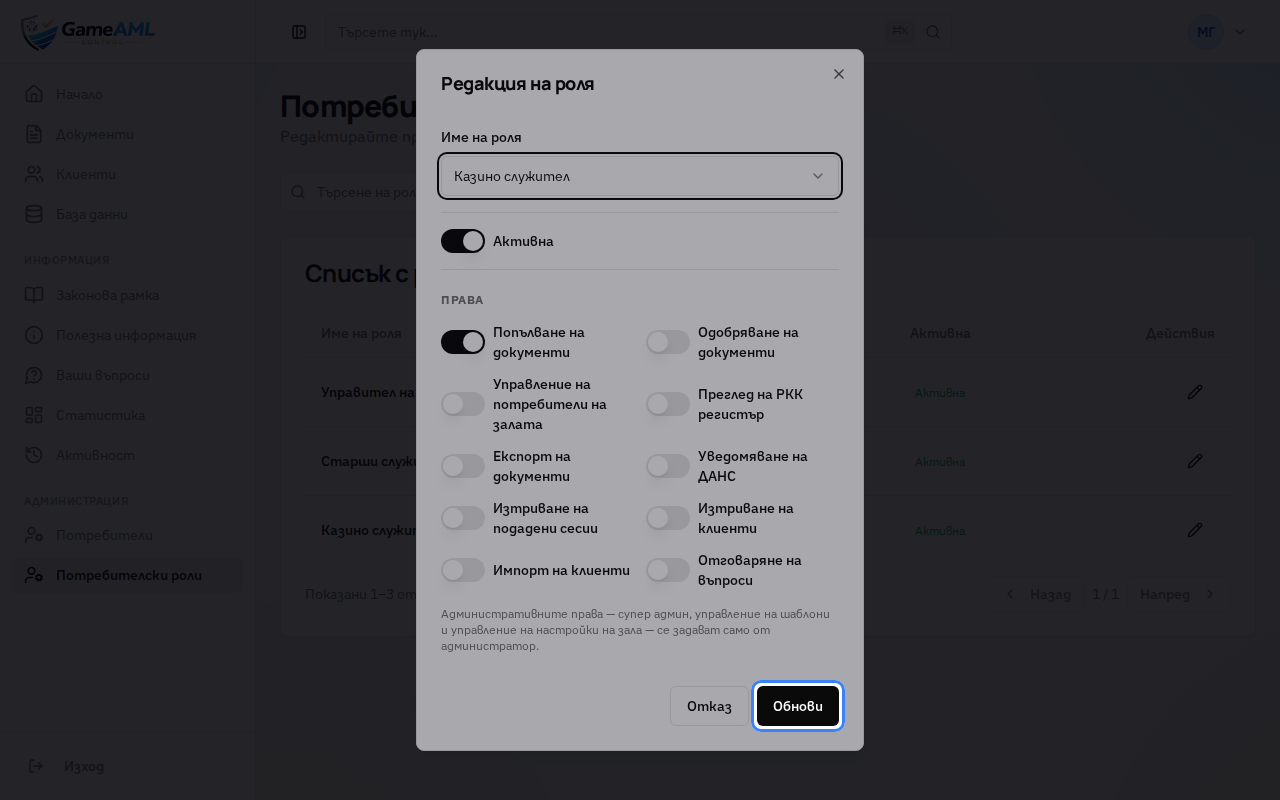
10To see or change a role’s rights, open “Потребителски роли” (User roles).
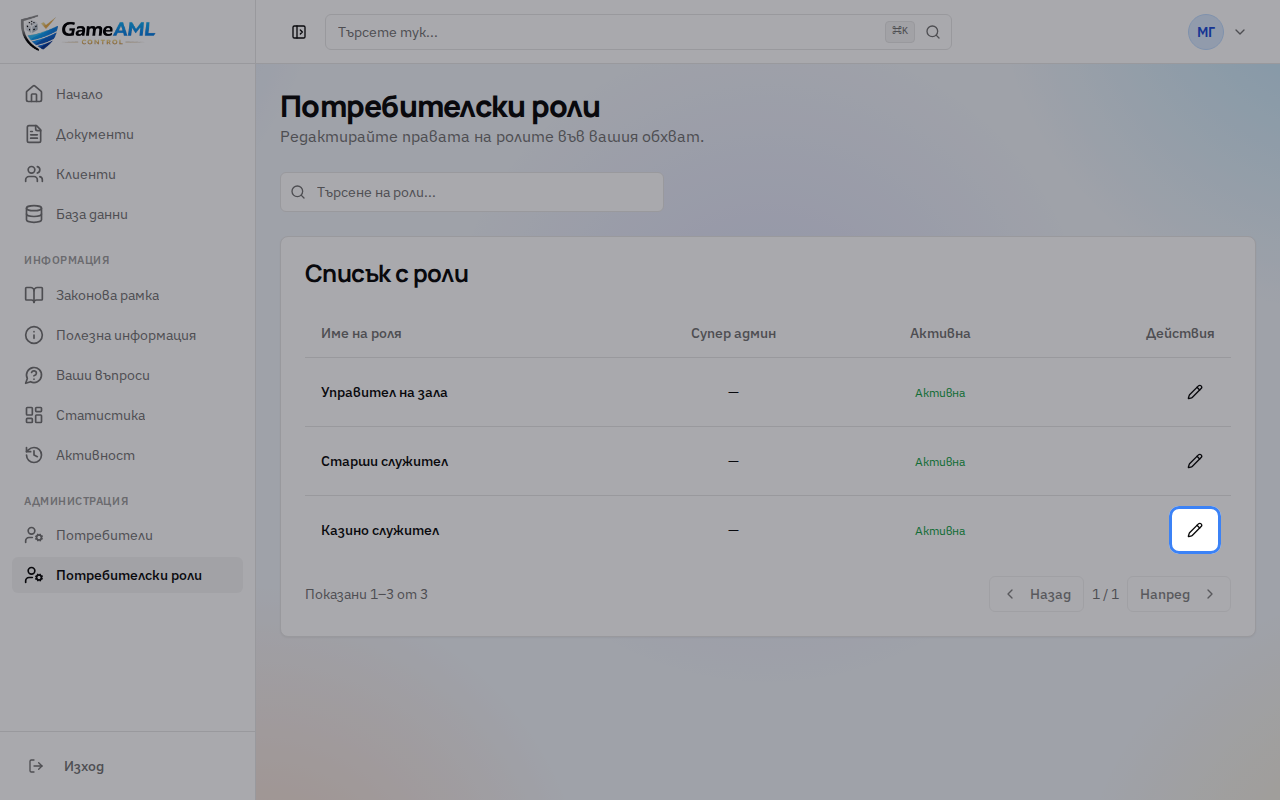
11Click the pencil next to the role.
12Each right has its own switch, such as “Попълване на документи” (Fill in documents) or “Одобряване на документи” (Approve documents).
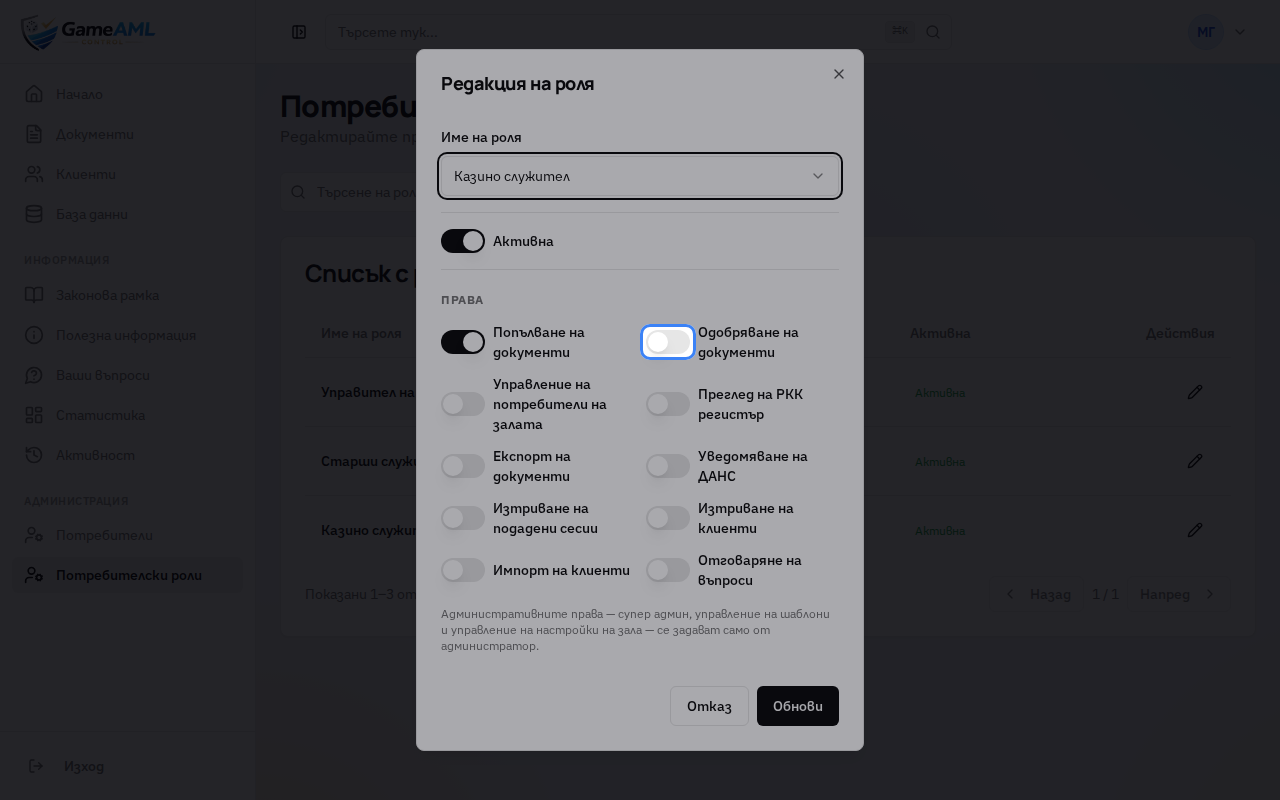
13Click “Обнови” (Update) to save. The change applies to every user with that role.
More lessons
Lessons are recorded and checked automatically in the live product, so they always show the current screens.